Templates Gallery
The Template Gallery (at /templates) is the fastest way to get a polished result: start from a proven design instead of a blank canvas, then make it yours.
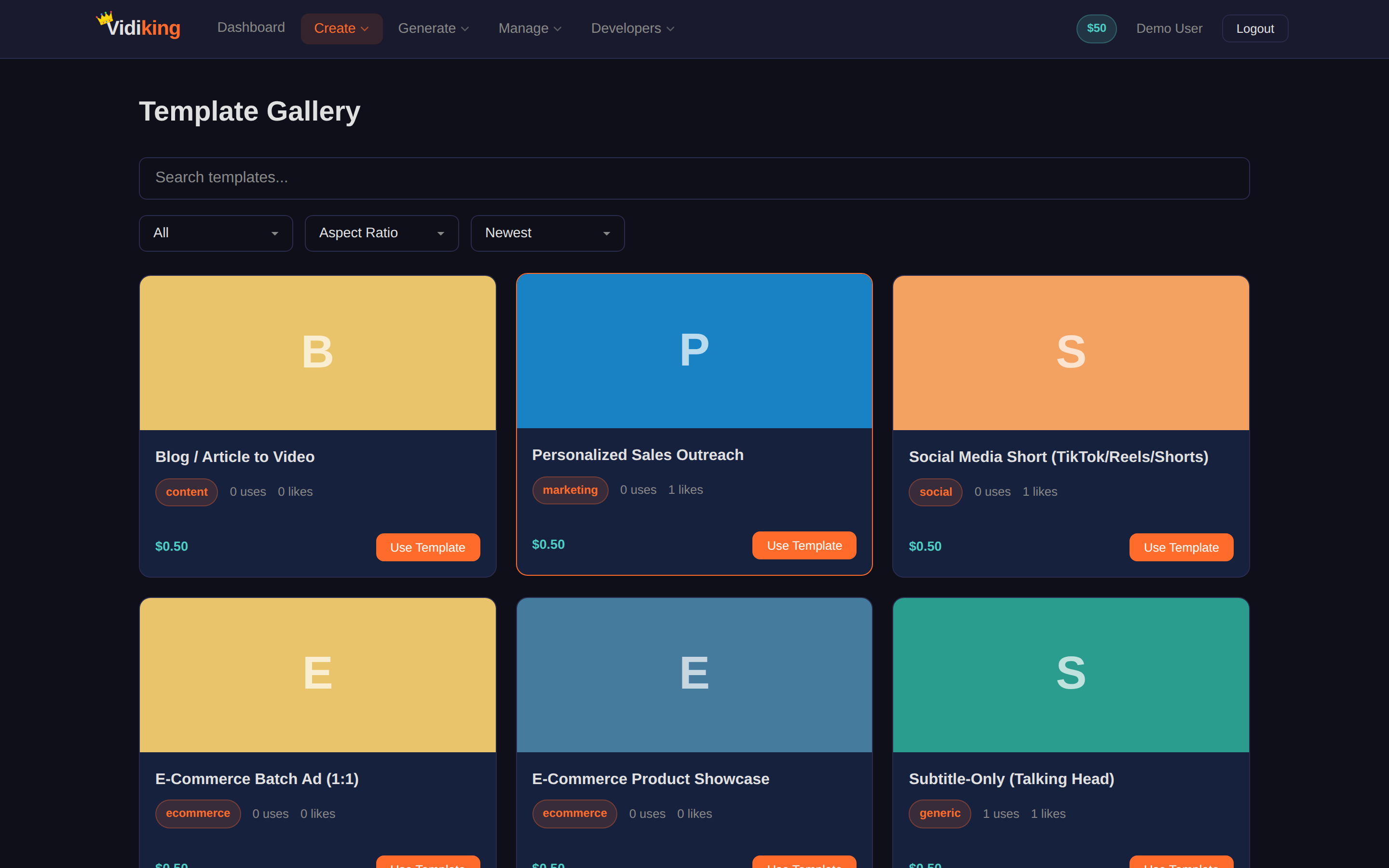
Browsing templates
- Open
/templatesto see the gallery of ready-made designs. - Use the search box and the All / Aspect Ratio / Newest filters to narrow things down.
- Each card shows the template's category, how many uses and likes it has, and its price (e.g. $0.50).
- Click a card to open its detail page and preview how it looks.
If nothing matches, you'll see a "No templates found" message — try the Studio editor to build from scratch.
Using a template
- Use Template — from a card or its detail page, this loads the design into Timeline Studio (Open in Studio) as an editable project. Swap text, images, colours and timing, then render.
- Customise the merge fields — templates expose dynamic fields (text, image URLs, colours, video URLs) you can fill in to produce a finished video without touching the design itself.
Templates with merge fields are the key to scale. Define a layout once, then feed it different data — product names, prices, images — to spin out thousands of on-brand variations. This is ideal for product feeds, listings and personalised campaigns. See Merge Fields for the full guide.
From the gallery to a finished video
- Find a template you like in the gallery.
- Click Open in Studio.
- Replace the placeholder text and media with your own.
- Preview, then Render — your video lands in the Media Library and on your Dashboard.
Automating templates
Anything you can do with a template in the app, you can also do programmatically. If you're sending the same template lots of data (e.g. from a spreadsheet or your store), drive it through the API instead — see Using Templates and Creating Templates.
Next: see where everything you make is stored in the Media Library.