Media Library
The Media Library (at /media) is the home for everything you've made: generated images, rendered videos, voiceovers and music — all in one place. Drop any of it back into Studio without paying to re-create it.
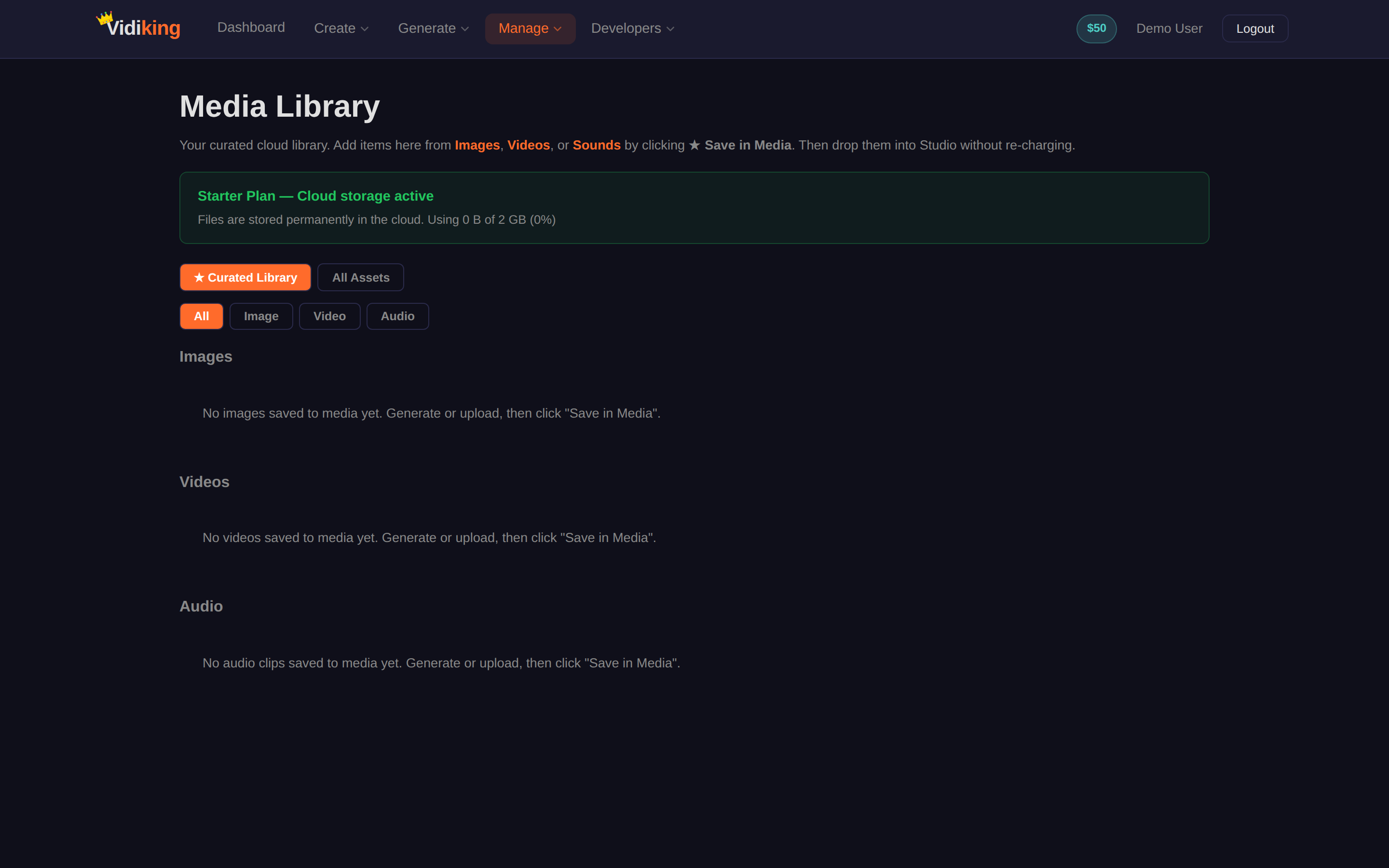
Two views, plus type filters
At the top you can switch between two views:
- All Assets — everything you've generated or rendered, kept in your cloud library.
- ★ Curated Library — the items you've hand-picked with ★ Save in Media for quick access.
Within either view, filter by type with All · Image · Video · Audio.
What you can do
- Reuse an asset. Open an item and send it straight onto the Studio timeline — no re-uploading, and no charge to re-generate.
- Download any file to your computer.
- Curate your favourites. Click ★ Save in Media on an asset to add it to your Curated Library so the pieces you reuse most are one click away.
Adding a library asset to a Studio project doesn't charge you again — you already paid to create it. The library is how you get the most out of every generation.
Generating media on its own
You don't have to open the full editor just to make one asset. Each media type has its own dedicated page:
| Page | Make… |
|---|---|
| Images | Single or bulk AI images from text prompts |
| Videos | Generated video clips |
| Sounds | Voiceovers and background music |
| Screen Capture | Screen recordings for tutorials and demos |
Anything you make on those pages shows up in the matching Media Library tab, and can be dropped into Studio whenever you need it.
Storage
Your saved media counts toward your storage plan (shown on the Dashboard and Profile pages). If you fill it up, you'll see an Upgrade prompt — or free space by un-starring assets you no longer need. You're always in control of what's kept; nothing is deleted on your behalf.
Next: planning content with others? See the Planner.